Project / Rust · Databases · Terminal UI · Developer tools
DB Desk
A terminal database browser for SQLite, PostgreSQL, and MySQL—built for browsing tables, running SQL, and making careful edits from the keyboard.
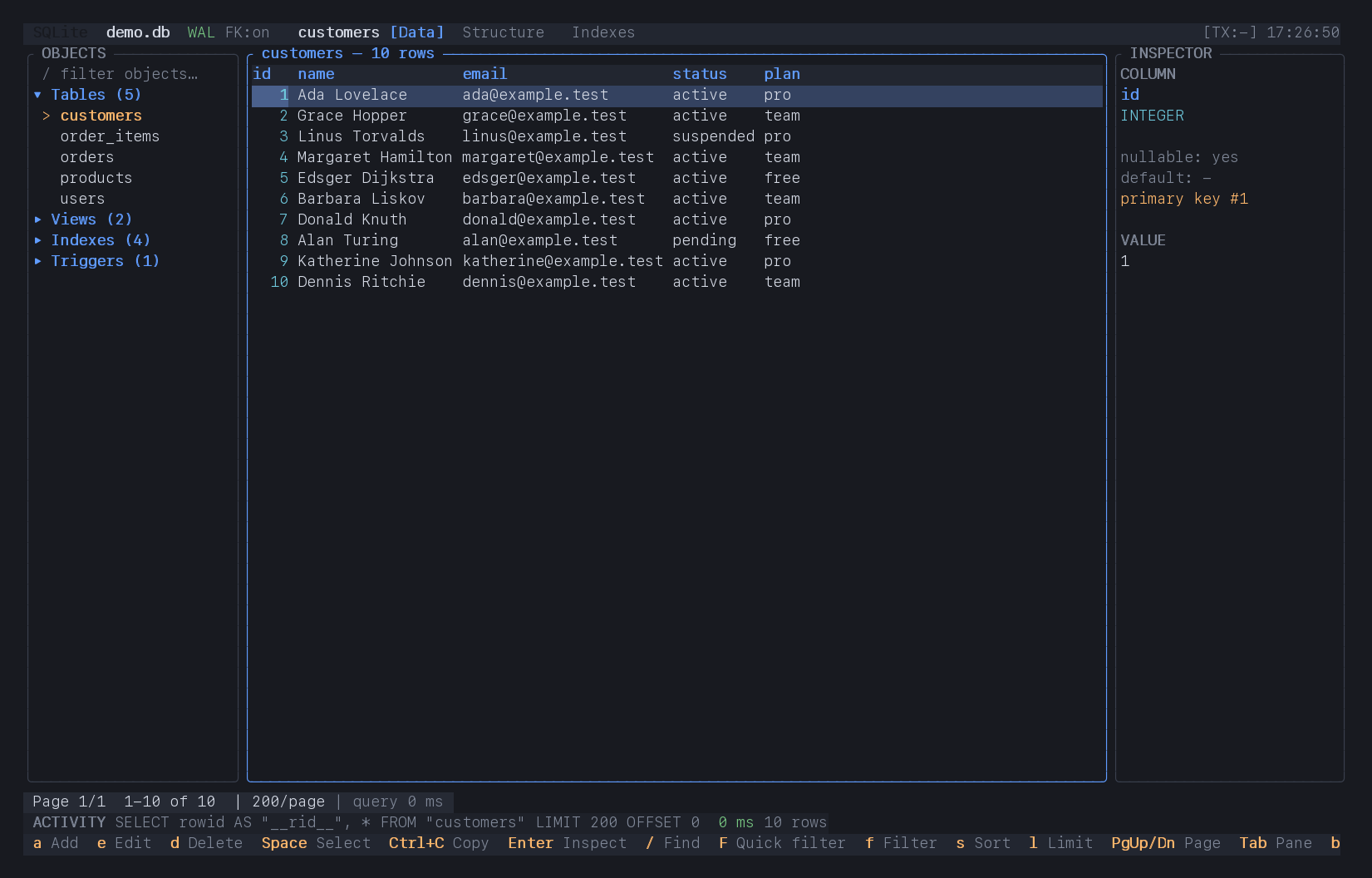
I wanted something quicker than a desktop client, friendlier than typing every query by hand, and happy to live in the terminal I already had open. DB Desk is the result.
Why I made it
I like terminal tools, but I do not think every database job should begin with remembering the exact query I need. Often I just want to look at a table, change one value, check an index, or copy a few rows.
DB Desk keeps those ordinary jobs close together. It is keyboard-first without trying to be cryptic: the useful shortcuts stay on screen, Ctrl+P opens a searchable command palette, and ? explains the screen you are on.
It is not meant to turn a terminal into a giant desktop IDE. It is a compact place to inspect a database and get something done.
SQL when I need it
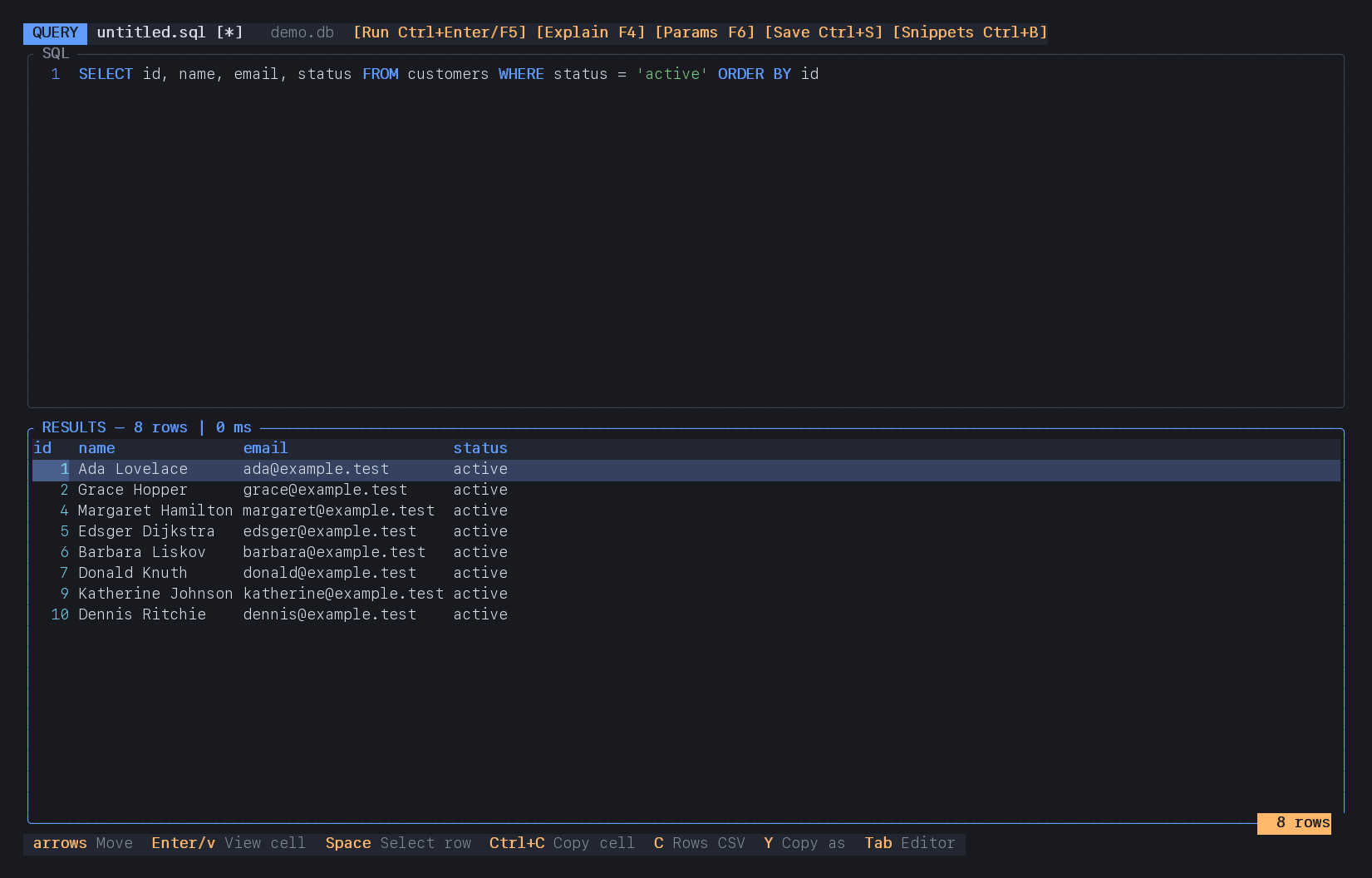
The query editor is part of the tool, not a separate mode of life. There is syntax highlighting, named parameter prompts, explain plans, saved buffers, and a searchable snippet library.
Query results use the same cell and row selection as table browsing, so copying a value or exporting a few rows feels familiar.
What is in there
- Browse data. Page through tables, search text, sort columns, select rows, and keep the object tree or inspector out of the way when you do not need them.
- Edit rows. Add, change, and delete through a type-aware form. Empty strings and
NULLstay distinct, and edits remain in a transaction until you commit them. - Look at the schema. Columns, primary and foreign keys, defaults, indexes, triggers, and DDL are reachable from the table you are already looking at.
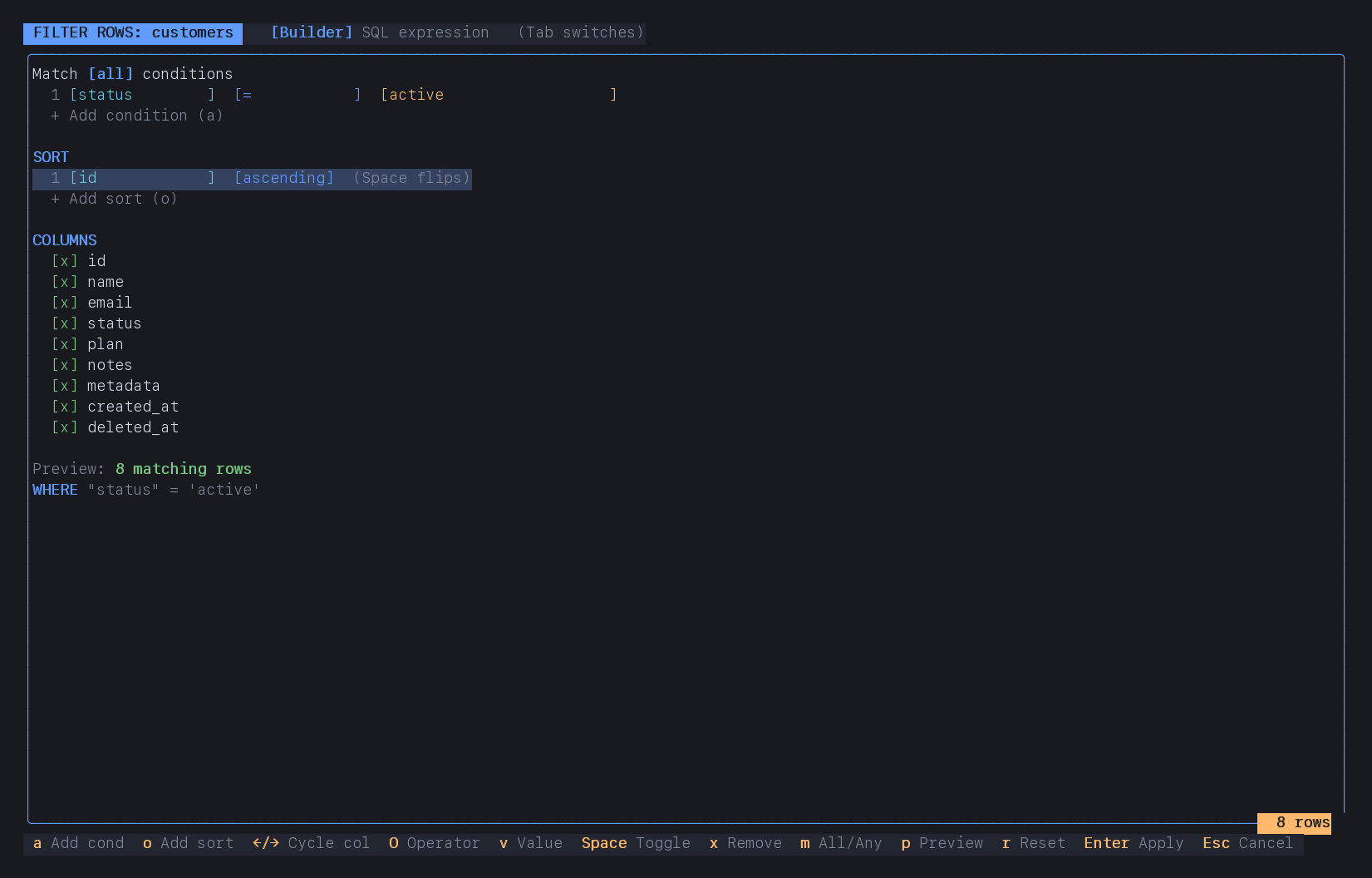
- Filter properly. Build conditions and sorting with a small form, preview the match count, choose visible columns, or switch to a raw SQL
WHEREexpression. - Copy what matters. Copy a cell or selected rows as CSV, TSV, Markdown, or SQL
INSERTstatements instead of exporting an entire table first. - Stay out of trouble. Read-only connections, typed confirmations, explicit transactions, and a warning before quitting with uncommitted work make experimentation less alarming.
A few practical notes
SQLite is bundled, so opening a local database does not need any extra libraries. PostgreSQL and MySQL use connection URIs and prompt for remote passwords.
The interface adapts when the terminal gets narrow. Recent connections, snippets, and preferences live in one local configuration file.
It has a command palette (CTRL+P) to access pretty much everything.
This is still a small tool. It does not currently include schema-creation wizards, CSV import, or a hundred panels you can arrange just so.
Oh but it does have themes :)
Want to try it?
It is not yet available for public consumption, but watch this space.